
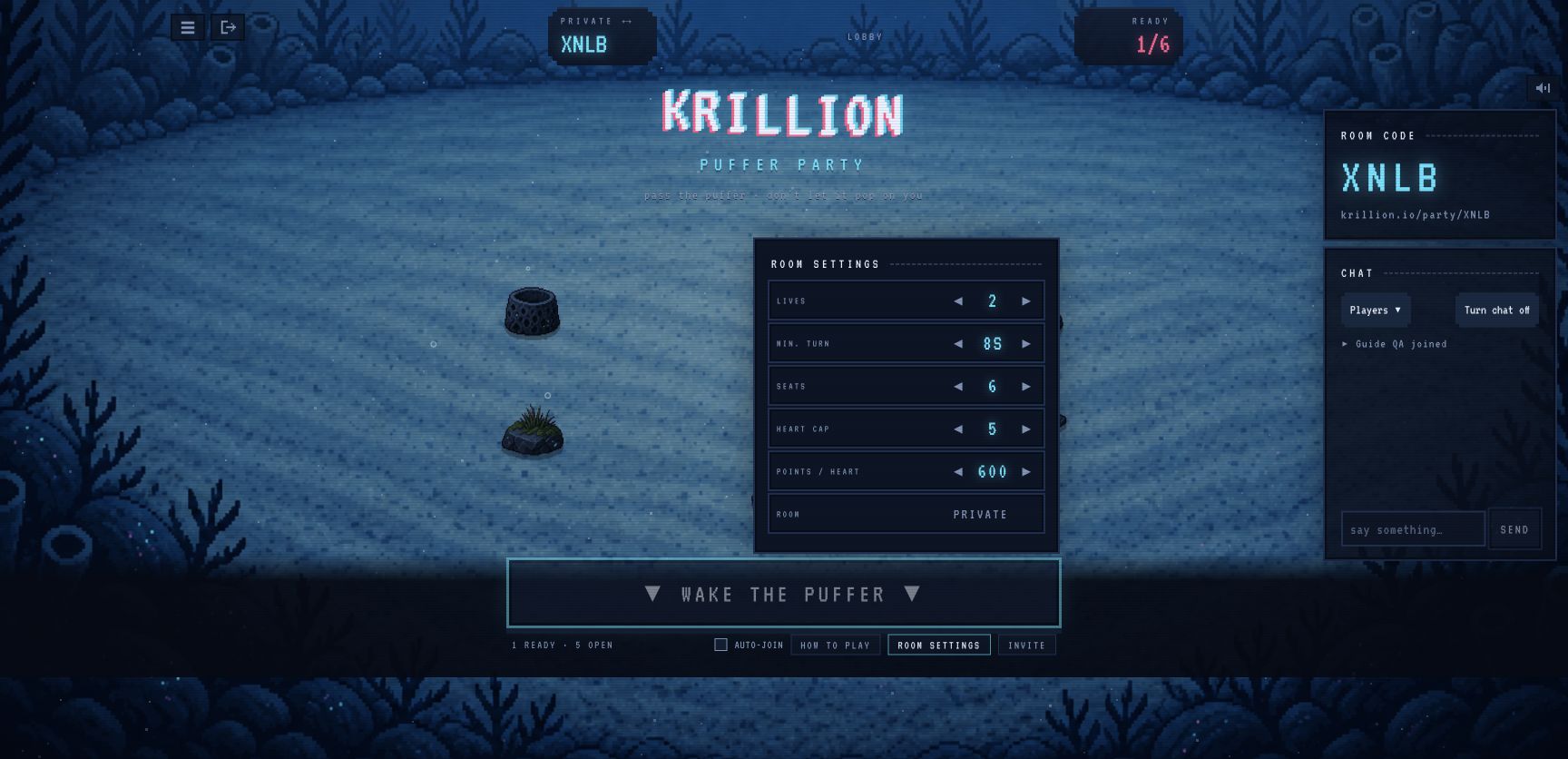
Choose Private · Code Only before Host a Room. Check the Private badge, room code and settings. Our one-player room could start after a second independent browser joined.
How to host a private Krillion room
Enter a nickname on the official Party page. Change Public · Listed to Private · Code Only before pressing Host a Room. Read the label rather than guessing from the switch colour. Inside, confirm the room badge still says Private. The host can change that badge later.
Check the room settings before inviting friends
Open Room Settings. Our new private room showed Lives 2, Min. Turn 8s, Seats 6, Heart Cap 5 and Points / Heart 600. These are the values in this test room, not universal limits or a promise that every turn lasts eight seconds. Compare your room before giving friends instructions.
Bring the group into one room
- Copy the room's own four-letter code or its invitation address.
- Have each friend open the invitation or enter the current code in Join by Code in a separate browser session.
- Confirm the same code and the ready count in both browsers.
- Use Wake the Puffer once the group is ready and the button is available.
Why is Wake the Puffer disabled?
The host starts the private round. Identify whose screen you are looking at before changing settings.
- Guest: a waiting-for-host message means the host needs to start; look at the host’s screen for Wake the Puffer.
- Host: compare the room code and player list with your friend. Complete any Take a Seat prompt in the guest browser.
- One ready player: check that the second player joined with a separate browser identity. Opening another tab alone is not enough to confirm this.
- Two distinct players ready: recheck the room’s visible settings and try the start control only when it is available.
With one player our start button was disabled. When the second independent browser joined, the count became 2/6 and starting became possible. Six seats did not mean six people were required to begin. If your button remains unavailable, keep the exact message and ready count; we have not reproduced every possible cause.
What we actually tested
On October 27 we created a private room, joined from Chrome and a separate in-app browser, started a two-player round and reached its result screen. No public queue or rating was tested. Both players used Leave room afterwards. The code shown in our screenshots is a closed test room, not a playable invitation.
Keep the invitation limited
Private here means code-only access. We did not find or test a password requirement. A forwarded invitation can reach someone else, so share the live code only with your intended group.
If a friend cannot join
Check that the lobby badge says Private, that the host is still in the room, and that the code matches. Compare the ready count and available seats. Our room-code walkthrough includes the manual-entry test and further checks.
For the first answer and the rest of the round, keep the complete Puffer Party setup nearby. If the button stays disabled after these checks, record the current screen and ready count; this guide has not verified every cause of a disabled start button.
Common questions
How do I create a private Krillion room?
Enter your nickname in the official Puffer Party lobby, select Private · Code Only, then Host a Room. Confirm the Private badge and share that room’s current invitation.
Why is Wake the Puffer greyed out?
Check the host’s screen, player names and ready count. In our October 27 test the button was disabled with one player and became available when a second independent player joined. Other causes have not all been tested.
Do I need six players to start Puffer Party?
Our private room had six seats but started with two independent players and a 2/6 ready count. That dated test does not establish every room’s capacity or all current configurations.
Did these steps help?
Optional, anonymous analytics. Manage your choice · Add a correction
Your next steps
0/3Sources & verification
What was checked
Select Private · Code Only before hosting, then verify the room badge and configuration.
Private hosting and one-player/two-player start states tested.
Private hosting and one-player/two-player start states tested. Test screenshots document a temporary private room that has now been left. No purchases, public queue or account changes were involved.
- Krillion — official Puffer Party ↗
Live lobby, help and private-room controls checked on October 27, 2026. Two separate browser sessions completed one private round.
- Nisu — firsthand room inspection ↗
Independent room inspection dated October 20. Corroborates private hosting, invitations and configurable room settings; its own test did not include a match.