
Use Join by Code on the official Party page. Enter the current code supplied by the host. If the room is unavailable, confirm the code and whether the room still exists before trying general browser fixes.
Use the host's actual invitation
Official Puffer Party uses krillion.io/party and a four-letter room code. Ask for the full invitation if the version is unclear. A code from a separately hosted fan game cannot identify the same official room.
Where do I enter a Krillion room code?
- Open the official Party lobby and enter a nickname.
- Enter the host's current code in Join by Code.
- Select Join, then follow any nickname or Take a Seat prompt.
- Compare the room code and ready count with the host before starting.
On October 29, 2026, we created a private room in one browser and entered its four-letter code in Join by Code in a second browser. After selecting Join, both browsers showed the same private room and 2/6 ready. Both players left afterwards. A direct invitation was separately tested on October 27. Your room code and seat count will differ.
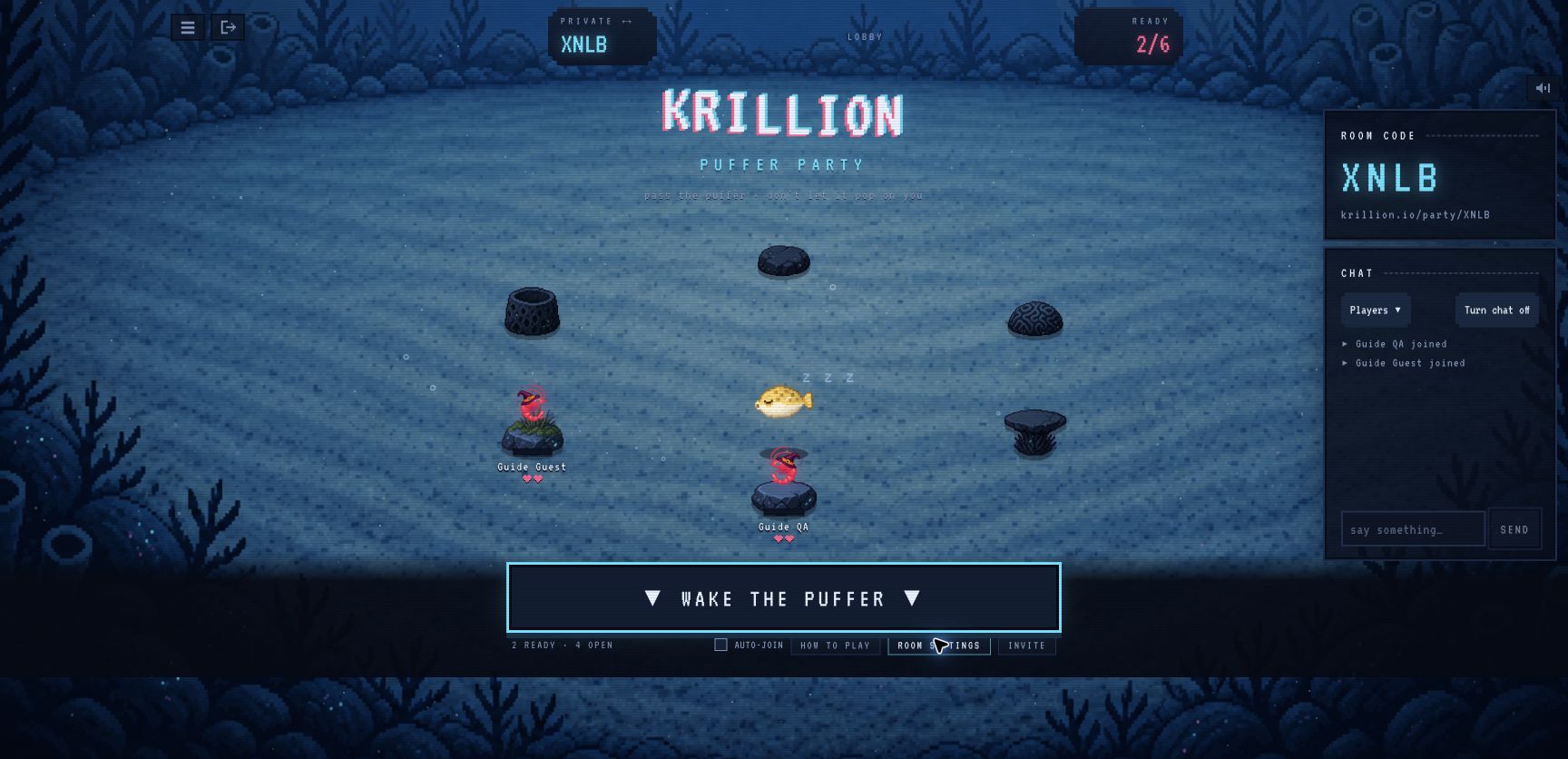
Why opening another tab may not add a player
Two tabs can share the same browser identity. For our test we used Chrome and a separate in-app browser, then verified two distinct names and a ready count of two. A second open window alone is not proof that a second player joined.
Why is my Krillion room code not working?
Start with the invitation, then the room state. These checks use the observed code-entry flow; they do not query the live room or guarantee a fix for every connection error.
The Join button is unavailable
- Confirm that you are on the official krillion.io/party page.
- Ask the host for the current four-letter code, rather than a code from a guide image.
- Enter all four letters. In our October 29 test, Join became available after the complete code was entered.
The invitation does not reach the host
- Compare the full invitation and room code with the host.
- Ask the host to check that they are still in that room and compare the player count with the available seats.
- If everyone left the old room, ask for a newly created invitation. Keep the exact error if the new invitation also fails.
I joined but cannot see my friend
- Compare the room code on both screens; a public Quick Play table is a different route.
- Have each player use their own browser session and a distinct nickname.
- Complete any Take a Seat prompt, then check for both names in the player list.
A second tab in one browser can share a player identity. Our dated test used independent browsers and confirmed two names with 2/6 ready. The count describes that room, not a fixed capacity for every game.
Before the first answer
Wait for the host to start. In our test the guest saw a waiting-for-host message, while only the host had Wake the Puffer. Once the round began, the active player received the answer field. Use Leave room when finished.
Which route should I use?
If you are hosting, follow the private room setup. If you want a random two-player match rather than a particular friend, see the 1v1 guide.
For the rules and an example of the first turn, use the complete Puffer Party guide. If the controls still differ after the checks above, include the exact message and guide URL in a correction; no current room lookup is available on this fan guide.
Common questions
Where do I enter a Krillion room code?
Open the official Puffer Party lobby at krillion.io/party. Enter the host’s current four-letter code under Join by Code, select Join and complete any Take a Seat prompt.
Why is my Krillion room code not working?
Confirm the official game address, all four letters and the host’s current invitation. Check that the host is still in the room and compare the player list with the available seats. A screenshot’s old code is not a live invitation.
Why can I not see my friend after joining?
Compare both room codes and player names. Each player should use a separate browser session and complete any seating prompt; two tabs can share one identity.
Did these steps help?
Optional, anonymous analytics. Manage your choice · Add a correction
Your next steps
0/3Sources & verification
What was checked
A guest can enter the current four-letter room code in Join by Code and reach the host’s private lobby.
Hands-on October 29: code entry and Join led a second browser to the same private lobby, which showed 2/6 ready.
On October 29, the host created a private room in one browser; a second browser entered the four-letter code in Join by Code and selected Join. Both browsers showed the same private room and 2/6 ready. Both players left. No public match was needed for this room-code test.
- Krillion — official Puffer Party ↗
Live lobby, help and private-room controls checked on October 27, 2026. Two separate browser sessions completed one private round.
- Nisu — firsthand room inspection ↗
Independent room inspection dated October 20. Corroborates private hosting, invitations and configurable room settings; its own test did not include a match.